Search This Blog

Showing posts with label MOBILE UNLOCK ( SAMSUNG ). Show all posts

Saturday, December 24, 2016

HOW TO FLASH SAMSUNG S7262 WITH ODIN

SAMSUNG S7262 FLASHING WITH ODIN
DETAILS IN HINDI VIDEO


 YOUTUBE LINK


how to flash samsung s 7262 with odin mode
first fpower off your mobile
then on with home key+ vol- + power
when appear vol+ to odin mode
press vol+
now connect usb to mobile
open your odin
select file
now start
when it reset and then pass
you know the process is complite


samsung star plus galaxy star plus samsung duos gt s7262 samsung star pro s7262 galaxy s7262 samsung galaxy star pro s7262 samsung galaxy star pro duos galaxy star plus duos samsung star pro samsung galaxy star pro gt s7262 samsung galaxy star s7262 samsung galaxy star pro samsung galaxy s7262 samsung s7262 samsung gt s7262 samsung galaxy star pro duos s7262 s7262 samsung galaxy star pro samsung galaxy gt s7262 samsung star plus gt s7262 samsung galaxy star gt s7262 samsung mobile star pro samsung galaksi star plus samsung duos s7262 samsung star pro duos samsung star plus s7262 gt s7262 samsung galaxy star plus s7262 flash samsung gt s7262

Friday, October 28, 2016

HOW TO FLASHING SAMSUNG S7392

To entering odin mode
power off your mobile s7392
press( home ) + ( vol- ) + ( power ) buttom
release power buttom when an android logo apper
now vol+ to select odin mode
then next procedure are in video


FLASH FILE DOWNLOAD LINK
https://drive.google.com/uc?id=0BxmV5S--nNBWS3VSMkFFUHVtZHc

THIS VIDEO TO SEE THE FLASHING PROCEDURE OF SAMSUNG S7392


samsung s7392 flash file samsung galaxy gt s7392 samsung galaxy trend s7392 samsung s7392 samsung gt s7392 samsung trend s7392 samsung galaxy trend duos samsung trend duos gt s7392 samsung trend gt s7392 galaxy trend duos gt s7392 root samsung galaxy trend gt s7392 samsung galaxy trend s7392 update to kitkat galaxy trend s7392 root galaxy trend samsung s7392 flash file and tool samsung gt s7392l samsung galaxy s7392 s7392 flash file samsung gt s7392 flash file s7392 samsung galaxy trend root samsung galaxy trend duos s7392 samsung gt s7392 root galaxy trend root samsung galaxy trend s7392 update to lollipop s7392 samsung samsung s7392 flashing galaxy gt s7392

Monday, November 16, 2015

AGTEL ICE FLASH FILE & FLASHING WITH VOLCANO

HOW TO FORMAT AG-TEL ICE WITH VOLCANO
HOW TO UNLOCK AG-TEL ICE WITH VOLCANO
HOW TO FLASHING AG-TEL ICE WITH VOLCANO

AG-TEL ICE FLASH FILE DOWNLOAD


PLAY THIS VIDEO TO TOTAL FLASHING TUTORIAL


Monday, September 14, 2015

HOW TO UNLOCK SAMSUNG 1200Y

UNLOCK SAMSUNG 1200Y PHONE LOCK WITH VOLCANO BOX


 CONNECT VOLCANO TOOL BOX
 Volcano Updated: 2013-12-10
  Connecting...
  Connection successful,connected state!
  Version: V3.8
  SN:119-365-610
  Port:COM7
  After format or Flash you have to press & hold power button for at least 1.30 mins.
  Note for win7 users :
  Start your Win 7 64bit with F8 key and choose 'Disable Driver Signature Enforcement'.
  After that the spd drivers will have the ability to be loaded.
  SPD U Disk Error Flash files password is = VolcanoAheadOfAllEVER
  Available Ports:COM1 COM2 COM4 COM6 COM7

1.SELECT CPU SPD-6530
2. SELECT READ INFO- RUN….


  Detection initiated...
  Vcc: 13 14
  Gnd: 2 4 6
  Analyzing D+ and D-...
  D+ = 16, D- = 17
  Analyzing USB device, please wait...
  Found [SPD] USB device: SCI USB2Serial,(VID_1782&PID_4D00)
  Setting...
  Find USB device:SPRD U2S Diag (COM34), (VID_1782&PID_4D00)
  Pinouts setting complete!
   
   
  Internal version: SPRD3
  Boot downloaded.
  Start boot please wait a moment....
  Spreadtrum Boot Block version 1.2
  CPU TYPE:[6530C000]
  FLASH ID: 00C8006000170000
  Flash Type:[GD]  25LG64bWL
  Size:0x800000(8MB)

 3. SELECT UNLOCK CODE – RUN……

  Screen Lock input order:
    ¢Ù ¢Ú ¢Û
    ¢Ü ¢Ý ¢Þ
    ¢ß ¢à ¢á
  [screen lock]:1213
  
  Software has two ways to find password, it may have different results to click button again.
4. CLICK NOW RUN
  Looking for passwords,please wait...
  [Theftproof Lock]  0000000
  [Theftproof Lock]  3333
  [Theftproof Lock]  0000
  [Theftproof Lock]  00000
  [Theftproof Lock]  33333
  [Phone Lock]  1234
>>Looking for passwords complete.

5.REMOVE YOUR VOLCANO CABLE
6.POWER ON MOBILE PHONE
7.GET THE PHONE LOCK CODE WHICH YOU GET FROM VOLCANO NOW ( 1234 )
8.GO TO SETTING AND PHONE LOCK DISABLE
COMMENT PLEASE .............

Tuesday, July 21, 2015

SAMSUNG GALAXY J5 (SM-J500F) PATTERN UNLOCK

 SAMSUNG GALAXY J5 (SM-J500F) ALL UNLOCK TRICKS AND TIPS

Tips and tricks for fix and hard reset SAMSUNG GALAXY J5 (SM-J500F). This is 4G Android smartphone which have dual simcard GSM slot. For latest available Android smartphone, Samsung already give Android Lollipop operating system, this is also happen at SAMSUNG GALAXY J5 which already use Android Lollipop for factory default Android OS. For better viewer, this phone use 5 inches LCD screen with HD resolutions 720p.

What is Advantage of  SAMSUNG GALAXY J5 (SM-J500F) Specifications:
GSM 3G HSDPA + 4G LTE
Dual SIMCARD
LCD 5 inches
Internal memory 16 GB
RAM 1.5 GB
External memory microSD up to 128 GB
Main Camera 13 MP, 4128 x 3096 pixels, autofocus, LED flash
Front Camera 5 MP with LED flash
Processor Quad-core 1.2 GHz from Snapdragon
Operating system Android OS, v5.1 (Lollipop)
Battery Li-Ion 2600 mAh battery

How to Fix or Problem Solving for Recovery SAMSUNG GALAXY J5 (SM-J500F) hang or not responding or malfunctions or stuck or freezing or bricked ?
There are several official Samsung applications that we can get while using SAMSUNG GALAXY J5, but because the internal memory is 16 GB which is more than enough to install several more interesting applications from Google Play Store like Facebook, Instagram, Whatsapp, Blackberry Messenger (BBM), Line Messenger, WeChat, Path, Pinterest, Viber, Skype and many more. If we need more capacity for keeping our images or pictures or movie, SAMSUNG GALAXY J5 have external memory slot using MicroSD upto 128 GB. Please remember, that some applications from Google Play Store may contain malware or virus or not compatible applications, if we install that apps, then can make our SAMSUNG GALAXY J5 become hang or stuck or bricks or frozen or boot logo loop. In some situations we also can get SAMSUNG GALAXY J5 LCD touch screen become not responding. When we get this problems, we have to force soft reset or force shutdown or force reboot to clean temporary files and caches from SAMSUNG GALAXY J5. If soft reset is not solved the problems then we have to do hard reset or master format. Please note, doing hard reset will wipe or remove all important data, therefore we have to backup all important data before doing hard reset.

How to Force Shutdown or Force Soft Reset or Reboot or Restart SAMSUNG GALAXY J5 (SM-J500F) ?
What should we do when our SAMSUNG GALAXY J5 get hang or stuck or bricks or freezing or LCD touch screen not responsive when we run applications? We have to force shutdown or force soft reset or force reboot to restart all running applications and also remove caches and temporary files. Please release back cover case of SAMSUNG GALAXY J5, after that we can find battery to unplug or remove, wait about 5 seconds, then put again this battery at right positions then continue press and hold POWER button to turn it on. This process is safe to do anytime, because it will not remove any important data. If our SAMSUNG GALAXY J5 still work normally, but we want to soft reset or reboot or restart, then we can press and hold POWER button until pop-up menu appear at LCD, then choose Shutdown / Power off / Reboot menu.

#Option 1, How to Hard Reset SAMSUNG GALAXY J5 (SM-J500F) with software menu:
  1. Turn on SAMSUNG GALAXY J5 (SM-J500F)
  2. Make sure SAMSUNG GALAXY J5 (SM-J500F) battery already charge properly
  3. Go to menu: Setting > Backup & Reset > Factory data reset > Reset device
  4. Choose Erase Everything
  5. SAMSUNG GALAXY J5 (SM-J500F) will do the process to Master Reset to Factory Default

hard reset samsung galaxy j5 to factory default
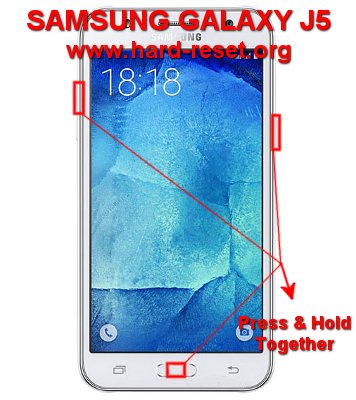
#Option 2, How to Hard Reset SAMSUNG GALAXY J5 (SM-J500F) with Hardware key button:
  1. Make sure the battery of SAMSUNG GALAXY J5 (SM-J500F) charge properly
  2. Turn off SAMSUNG GALAXY J5 (SM-J500F)
  3. Press and hold together : Power Button + Volume Up + Home Button 
  4. If the button at number 3 not work, we can try with press and hold together Power Button + Volume Up Button
  5. If we see the menu at LCD screen, choose Wipe Data/Factory Reset with Volume Button to select and use Power Button to ok or enter.
  6. The SAMSUNG GALAXY J5 (SM-J500F) will doing the process of restoring to factory default.

How to Restore and Reinstall Clean Android Operating system / firmware at SAMSUNG GALAXY J5 (SM-J500F) (Reformat) ?
Using SAMSUNG GALAXY J5 will be fun for run many applications like office work, entertainment or games. All apps can download from Google Play Store, but please choose only have good review from users, to ignore any trouble at our SAMSUNG GALAXY J5 while running that applications. Some bad applications can make our SAMSUNG GALAXY J5 operating system become damages or corrupted. Our phone will become strange or not normal while running or in some case can not boot properly. We need to reinstall or reformat or restore with factory default Android operating system. First we have to know that clean factory default Android operating system already saved safely inside SAMSUNG GALAXY J5 ROM or internal memory, therefore we can directly do reformat or reinstall without need to copy the file source from other device. Just follow simple steps to hard reset above, then clean factory default Android operating system will be reinstall automatically.

How to Unlock or Fix or Bypass or Solutions for SAMSUNG GALAXY J5 (SM-J500F) forgot password code or security lock screen pattern or pin (lost password)?
Using SAMSUNG GALAXY J5 which have 13 megapixel main camera and also have 5 megapixel front for selfie camera will make use have many good pictures or photo, moreover the front camera of SAMSUNG GALAXY J5 already have own LED flash which can help us take good photo using front camera at low light situations. Some of pictures maybe only for private consumption, therefore we have to give security protections to keep our data confidential. There are several factory default protections that already include inside SAMSUNG GALAXY J5, usually we recommended using screen lock pattern because this is more faster and easy to use, but some users also like to use password pin protections. The problems happen when we forgot the screen lock protections answer, what should we do? Do not worry, because we can bypass or unlock forgotten screen lock pattern or password pin protections using Google account. Please tun on this phone, after the screen ask for answer, please give several time wrong answer continuously until SAMSUNG GALAXY J5 freezing or locked about 30 seconds, at this time we can give our Backup PIN (which already assign when we give security protections) or use Gmail username and password that we have already signed-in before. If we still can not use Google account to unlock, then we have to do hard reset using hardware button combination key.

What is PIN BACKUP at SAMSUNG GALAXY J5 (SM-J500F) ?
This is kind of help for unlock or bypass forgotten security protection at SAMSUNG GALAXY J5 (SM-J500F). Although we are sure about our security protection, but sometime we can forget about it. When we give the security protection at our SAMSUNG GALAXY J5 (SM-J500F), it also give step to put our own PIN as BACKUP PIN. This backup PIN use to bypass or unlock forgotten security code later. Use above steps to unlock forgot password or screen lock pattern security protection using Google account or Gmail username and password.

How to Improve Performance SAMSUNG GALAXY J5 (SM-J500F) to make run more faster?
The SAMSUNG GALAXY J5 specifications already fast to run many applications, this phone also can run HD games without problems because SAMSUNG GALAXY J5 already have dedicated GPU (graphic processor unit) using Adreno 306. Base by many benchmark review, we can give good score for SAMSUNG GALAXY J5 performance. By why some users get slowly problems using this phone? Usually this problems happen because there are too many applications use resources together. We have to know that some applications from Google Play Store will keep run in the background without any notifications, all applications will need some amount of RAM, if many of them use it, then RAM and processor resources will be insufficient and can make SAMSUNG GALAXY J5 (SM-J500F) become slowly because it will try to release or force close old not use applications to give more free RAM. Therefore we suggest to uninstall not use or not important applications. If we want to make SAMSUNG GALAXY J5 performance run faster again like new, then we have to consider do hard reset or master format.

Is That Any Secret Code for Doing Format SAMSUNG GALAXY J5 (SM-J500F) ?
We can try to use secret code for doing hard reset SAMSUNG GALAXY J5 (SM-J500F) is *2767*3855#. But please remember to always be careful typing that code, because the SAMSUNG GALAXY J5 (SM-J500F) will doing hard reset and remove all data and installed applications.

SAMSUNG J7 (SM-J700F) PATTERN UNLOCK

SAMSUNG J7 (SM-J700F) ALL UNLOCK TRICKS AND TIPS

Tips and tricks for fix problems at SAMSUNG J7 (SM-J700F). The SAMSUNG J7 is Android Lollipop smartphone, because at first time release already use Android Lollipop version 5.1 as factory default operating system. The bigger LCD Screen at 5.5. inches make it different with SAMSUNG GALAXY J5 which only have 5 inches, but but resolutions still using HD at 780p at SAMSUNG J7 (SM-J700F) LCD screen resolutions. This phone have 13 megapixel main camera at back body and 5 megapixel front camera. Both camera (back and front) have LED flash light to help us take better images at low light situations.

What is Advantage of SAMSUNG J7 (SM-J700F) Specifications?
Network GSM 3G HSDPA & 4G LTE
Dual Simcard GSM-GSM
LCD 5.5 inches, 720 x 1280 pixels
Processor Quad-core 1.4 GHz Cortex-A53 From Qualcomm
GPU Adreno 405
Memory Internal 16 GB storage
RAM 1.5 GB
Main Camera 13 MP, 4128 x 3096 pixels, autofocus, LED flash
Front Camera 5 MP with LED light
Operating System Android, v5.1 (Lollipop)
Battery Li-Po 3000 mAh

How to Fix or Problem Solving for Recovery SAMSUNG J7 (SM-J700F) hang or not responding or malfunctions or stuck or freezing or bricked ?
There are some Samsung factory default applications which already included inside SAMSUNG J7, together with Samsung TouchWiz user interface. We also can find some other interesting free applications from Google Play Store for social media or chatting like Facebook, Twitter, Instagram, WeChat, Line Messenger, Whatsapp, Blackberry Messenger (BBM), Path, Pinterest, Viber, Skype and many more. But if we still want to download other applications then we have to becareful because some applications or games at Google Play Store may contain virus or malware which can make our SAMSUNG J7 become stuck or hang or bricks or can not boot properly (boot loop). Some users also get trouble at LCD screen not responding with finger touch. When we get this problems, we need to force shutdown or force soft reset or force reboot to clean temporary files and caches at SAMSUNG J7. If we still have problems after doing soft reset, then we have to do hard reset or master format. Please note, do not forget to backup all important data anytime we can, especially when we want to do hard reset or master format, because doing hard reset will remove or wipe any important data.

How to Force Shutdown or Force Soft Reset or Reboot or Restart SAMSUNG J7 (SM-J700F) ?
Please give simple steps to soft reset SAMSUNG J7 when this phone get hang or LCD touch screen display can not responsive in the middle of running applications? When our applications get stuck or hang, sometime our SAMSUNG J7 can become not responding or can not response anything, at this moment we need to force shutdown or force soft reset or reboot to restart all applications from beginning again and also delete temporary files and caches. Please remove back case cover and release or unplug SAMSUNG J7 battery, wait about 5 seconds or more then put again that battery in the right positions, press POWER button to turn it on again. This process also can be done when our SAMSUNG J7 still at normal conditions to clean temporary files or caches, by press and hold POWER button until pop-up menu appear then choose Shutdown / Power off / Reboot menu. Doing soft reset is safe, because this process will not remove anything from our SAMSUNG J7.

#Option 1, How to Hard Reset SAMSUNG J7 (SM-J700F) with software menu:
  1. Turn on SAMSUNG J7 (SM-J700F)
  2. Make sure SAMSUNG J7 (SM-J700F) battery already charge properly
  3. Go to menu: Setting > Backup & Reset > Factory data reset > Reset device
  4. Choose Erase Everything
  5. SAMSUNG J7 (SM-J700F) will do the process to Master Reset to Factory Default

hard reset samsung galaxy j7 to factory default master format
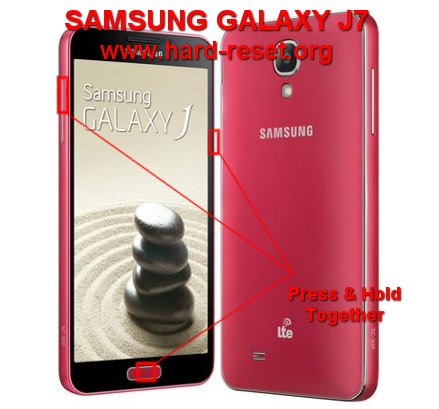
#Option 2, How to Hard Reset SAMSUNG J7 (SM-J700F) with Hardware key button:
  1. Make sure the battery of SAMSUNG J7 (SM-J700F) charge properly
  2. Turn off SAMSUNG J7 (SM-J700F)
  3. Press and hold together : Power Button + Volume Up + Home Button 
  4. If the button at number 3 not work, we can try with press and hold together Power Button + Volume Up Button
  5. If we see the menu at LCD screen, choose Wipe Data/Factory Reset with Volume Button to select and use Power Button to ok or enter.
  6. The SAMSUNG J7 (SM-J700F) will doing the process of restoring to factory default.


YOU CAN SEARCH OTHER MODEL IN ( MOBILE PHONE ) PAGE


How to Restore and Reinstall Clean Android Operating system / firmware at SAMSUNG J7 (SM-J700F) (Reformat) ?
After installing many applications from Google Play Store or use external APK, sometime the running applications at SAMSUNG J7 can crash and make the operating system become corrupted or damaged, our SAMSUNG J7 become not responsive and not run normally. If we are sure our SAMSUNG J7 operating system already damage, then we need to reformat or reinstall to restore with factory default Android operating system or firmware. First we have to know, that clean factory default Android operating system already saved safely inside SAMSUNG J7 (SM-J700F) ROM. The file source is ready to use anytime without need to copy or connect with other device. Just follow simple steps to hard reset above, then clean factory default Android operating system or firmware will be reinstall at SAMSUNG J7 (SM-J700F) automatically.

How to Unlock or Fix or Bypass or Solutions for SAMSUNG J7 (SM-J700F) forgot password code or security lock screen pattern or pin (lost password)?
It is very important to give security protections at our SAMSUNG J7 (SM-J700F) to prevent non authorized user get our confidential data while this phone away from us or lost or stolen. There are some factory default security protections that already installed inside this phone, but we strongly recommended to use screen lock pattern because more easy to open and faster as well, but some users also like to use the other like password pin protections. The problem happen when we forgot the answer for that security protection? How to unlock or bypass it? Do not worry because we can unlock or bypass forgot security protection at SAMSUNG J7 (SM-J700F) using Google account. Please give several time wrong answer continuously until this phone locked or freeze about 30 seconds. At this time we can find Forgot Password / Pattern button, press this button the we can unlock or bypass forgotten screen lock pattern or password pin protections at SAMSUNG J7 (SM-J700F). If we have Backup PIN which assigned when we have gave screen lock pattern, then we can use that to unlock forgotten screen lock pattern as well. However, if we still can not unlock or bypass our screen lock pattern or password pin, then we need to do hard reset using hardware button combination key.

What is PIN BACKUP at SAMSUNG J7 (SM-J700F) ?
This is kind of help for unlock or bypass forgotten security protection at SAMSUNG J7 (SM-J700F). Although we are sure about our security protection, but sometime we can forget about it. When we give the security protection at our SAMSUNG J7 (SM-J700F), it also give step to put our own PIN as BACKUP PIN. This backup PIN use to bypass or unlock forgotten security code later. Use above steps to unlock forgot password or screen lock pattern security protection using Google account or Gmail username and password.

How to Improve Performance SAMSUNG J7 (SM-J700F) to make run more faster?
We can run almost all applications from Google Play Store without problems at SAMSUNG J7 (SM-J700F), because this phone have Quad Core processor and also have 1.5 GB RAM for multitasking. For faster internet data connection, this phone also have 4G LTE broadband network for available provider. The benchmark review of SAMSUNG J7 (SM-J700F) also give good result. If some users get problem with slowly performance at SAMSUNG J7 (SM-J700F), then usually this problems happen because there are too many applications run in the background and take all resources which make it become insufficient. We have to know that some applications like chatting or social media or games will keep run in the background after installing from Google Play Store, all applications will need RAM and processor resources, therefore we need to keep our phone resources available by uninstall some not use applications. The limited or insufficient RAM or processor resources will make SAMSUNG J7 become slowly because this phone will try to find which running applications can be force close to give free RAM and processor resources again.

Is That Any Secret Code for Doing Format SAMSUNG J7 (SM-J700F) ?
We can try to use secret code for doing hard reset SAMSUNG J7 (SM-J700F) is *2767*3855#. But please remember to always be careful typing that code, because the SAMSUNG J7 (SM-J700F) will doing hard reset and remove all data and installed applications.

SAMSUNG ALL MOBILE UNLOCKING / HARD RESET

SAMSUNG MOBILE ALL USER UNLOCKS / PATTERN UNLOCK / SAFTY HARD RESET

GALAXY MINI 2 GT-S6500 

  GALAXY CORE GT-I8260 / GT-I8262 DUAL PATTORN UNLOCK

GALAXY STAR PRO S7260 & STAR PRO DUOS S7262 PATTERN UNLOCK

  GALAXY ACE 3 GT-S7270 / S7275 / S7272 PATTERN UNLOCK 

  GALAXY NOTE 3 GT-N9000 / N9002 / N9005 PATTERN UNLOCK

  GALAXY J N075T PATTERN UNLOCK

  GALAXY S4 ZOOM SM-C1010 / SM-C101 PATTERN UNLOCK

SAMSUNG GALAXY LIGHT SGH-T399 / GARDA PATTERN UNLOCK 

SAMSUNG GALAXY TAB PRO 8.4 SM-T320 / SM-T325 / SM-T321 PATTERN UNLOCK 


XIAOMI REDMI 1S / HONGMI 1S with Safety Hard Reset PATTERN UNLOCK

 SAMSUNG GALAXY GRAND NEO GT-I9060 / GT-I9062 ALL UNLOCK TIPS 


SAMSUNG GALAXY S3 MINI I8190 PATTERN UNLOCK

SAMSUNG GALAXY S4 MINI GT-I9190 / GT-I9192 / GT-I9195 PATTERN UNLOCK

SAMSUNG GALAXY S ADVANCE GT-I9070 PATTERN UNLOCK

SAMSUNG GALAXY ACE PLUS GT-S7500 PATTERN UNLOCK

SAMSUNG GALAXY S DUOS GT-S7562 PATTERN UNLOCK

SAMSUNG GALAXY CHAT GT-B5330 PATTERN UNLOCK

SAMSUNG GALAXY MINI GT-S5570 (Galaxy POP) PATTERN UNLOCK

SAMSUNG GALAXY MINI 2 GT-S6500 PATTERN UNLOCK with Safety Hard Reset

SAMSUNG GALAXY CORE GT-I8260 / GT-I8262 DUAL PATTORN UNLOCK with Safety Hard Reset

SAMSUNG GALAXY STAR PRO S7260 & STAR PRO DUOS S7262 PATTERN UNLOCK with Safety Hard Re

SAMSUNG GALAXY ACE 3 GT-S7270 / S7275 / S7272 PATTERN UNLOCK with Safety Hard Reset

SAMSUNG GALAXY NOTE 3 GT-N9000 / N9002 / N9005 PATTERN UNLOCK with Safety Hard Reset

SAMSUNG GALAXY J N075T PATTERN UNLOCK with Safety Hard Reset

SAMSUNG GALAXY S4 ZOOM SM-C1010 / SM-C101 PATTERN UNLOCK with Safety Hard Reset

  
SAMSUNG GALAXY LIGHT SGH-T399 / GARDA PATTERN UNLOCK with Safety Hard Reset

SAMSUNG GALAXY TAB PRO 8.4 SM-T320 / SM-T325 / SM-T321 PATTERN UNLOCK with Safety Hard Reset

SAMSUNG GALAXY S5 PATTERN UNLOCK with Safety Hard Reset

SAMSUNG GALAXY S DUOS 2 S7582/S7580 PATTERN UNLOCK with Safety Hard Reset

SAMSUNG GALAXY TAB 4 7.0 (SM-T230/SM-T231/SM-T235) PATTERN UNLOCK with Safety Hard Reset

SAMSUNG GALAXY CORE 2 & CORE II DUAL (SM-G355H) PATTERN UNLOCK with Safety Hard Reset

SAMSUNG GALAXY TAB S 10.5 WIFI & LTE SM-T800/SM-T805 with Safety Hard Reset PATTERN UNLOCK

XIAOMI REDMI 1S / HONGMI 1S with Safety Hard Reset PATTERN UNLOCK

SAMSUNG GALAXY GRAND NEO GT-I9060 / GT-I9062 with Safety Hard Reset PATTERN UNLOCK

SAMSUNG GALAXY GRAND PRIME SM-G530F / SM-G530H with Safety Hard Reset PATTERN UNLOCK

Format SAMSUNG GALAXY NOTE 4 SM-N910F / N910C / N910G / N910U / N910H / N910W8 with Safety Ha

SAMSUNG GALAXY CORE PRIME SM-G360F / SM-G360G / SM-G3606 / SM-G3608 / SM-G3609 with Safety

SAMSUNG GALAXY V (DUAL G313HZ) with Safety Hard Reset PATTERN UNLOCK

SAMSUNG GALAXY ALPHA (SM-G850F / SM-G850T / SM-G850M / SM-G850Y / SM-G850FQ) with Safety H

SAMSUNG GALAXY A5 (A500F / A500FQ / A500FU / A500HQ / A500YZ) with Safety Hard Reset PATTERN

SAMSUNG GALAXY J1 (SM-J100F/SM-J100FN/SM-J100H/SM-J100H-DD/SM-J100H-DS/SM-J100M/SM-J100

SAMSUNG GALAXY E7 (SM-E7000 / SM-E7009 / SM-E700F / SM-E700H / SM-E700M) with Safety Hard Re

SAMSUNG GALAXY E5 (SM-E500 / SM-E500H / SM-E500HQ / SM-E500M) with Safety Hard Reset PATTER

SAMSUNG GALAXY A3 (SM-A300F / SM-A300FU / SM-A300G / SM-A300HQ / SM-A300M / SM-A300YZ)

SAMSUNG GALAXY S6 (SM-G9200 / SM-G9208 / SM-G9209 / SM-G920A / SM-G920F / SM-G920FD / SM-

SAMSUNG GALAXY S6 EDGE (SM-G9250 / SM-G925A / SM-G925F / SM-G925FQ / SM-G925I / SM-G925K

SAMSUNG GALAXY GRAND MAX (SM-G720N0) PATTERN UNLOCK

SAMSUNG GALAXY S DUOS 3 SM-G313HU PATTERN UNLOCK

SAMSUNG GALAXY GRAND 2 PAATTERN UNLOCK
 

Friday, July 3, 2015

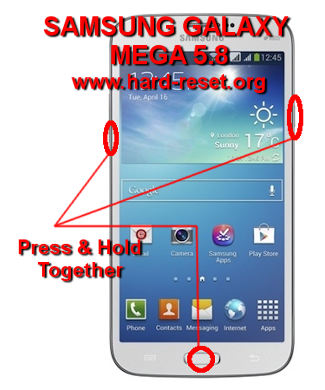
SAMSUNG GALAXY MEGA 5.8 GT-I9150 (GT-I9152) PATTERN UNLOCK

SAMSUNG GALAXY MEGA 5.8 GT-I9150 (GT-I9152) ALL UNLOCK TRICKS AND TIPS

Tips and Tricks for SAMSUNG GALAXY MEGA 5.8 GT-I9150 (GT-I9152). Usually Samsung Galaxy family have several kind type with almost the same name. This is also available at Samsung Galaxy Mega, because it have 5.8 inches LCD screen and also the other Samsung Galaxy Mega 6.3 inches LCD screen. But now we will discus about SAMSUNG GALAXY MEGA 5.8 inches. The most visible difference are in the LCD wide size, processor speed, battery and also data connection at SAMSUNG GALAXY MEGA 5.8 is not equip by LTE / 4G but in GT-I9150 have two GSM card slot.

What is Main Advantage of SAMSUNG GALAXY MEGA 5.8 GT-I9150 (GT-I9152):
GSM 3G HSDPA & Optinaly 2 card slot for GSM
LCD 5.8 inches qHD TFT Capacitive Touchscreen
Processor Dual-core 1.4 GHz with GPU
Memory Internal 8 GB ROM with 1.5GB RAM
External Memory slot Micro SD up to 64GB
Main Camera 8 MP, 3264 x 2448 pixels, autofocus, LED flash
Front camera for Video Conference
Operating SystemAndroid OS, v4.2.2 (Jelly Bean)
Battery Li-Ion 2600 mAh

How to Fix or Problem Solving for Recovery SAMSUNG GALAXY MEGA 5.8 GT-I9150 (GT-I9152) hang or not responding or malfunctions or stuck or freezing or bricked ?
Using SAMSUNG GALAXY MEGA 5.8 GT-I9150 (GT-I9152) for doing work or entertainment activity will give us the good experience. We can download many applications from Google Play Store. But we have to understand that not all applications is created with good conditions, maybe some developer not had time to try at SAMSUNG GALAXY MEGA. If the problem happen, our smartphone can act not normal such as hang or stuck or frozen or bricks or LCD touch screen is not responding. First step you can try is doing soft reset or reboot the SAMSUNG GALAXY MEGA 5.8 GT-I9150 (GT-I9152) to delete some cache and temporary files. If the problem still happen than you have to do hard reset or master format.

How to Soft Reset or Reboot or Restart SAMSUNG GALAXY MEGA 5.8 GT-I9150 (GT-I9152) ?
Sometime we need to do soft reset or restart for clean unresponsive applications cache or temporary files. We can do soft reset SAMSUNG GALAXY MEGA 5.8 GT-I9150 (GT-I9152) easily by remove the battery for about two or five seconds, after that plug it again and turn on the smartphone with power button. The other alternative to soft reset or restart when the SAMSUNG GALAXY MEGA 5.8 GT-I9150 (GT-I9152) at on condition, press the POWER BUTTON KEY for several seconds, we will see the menu to restart or turn off. Choose restart/reboot than the SAMSUNG GALAXY MEGA 5.8 GT-I9150 (GT-I9152) will do the soft reset or restart. This is safe to do because all data or installed applications will not removed.

#Option 1, How to Hard Reset SAMSUNG GALAXY MEGA 5.8 GT-I9150 (GT-I9152) with software menu:
  1. Turn on  SAMSUNG GALAXY MEGA 5.8 GT-I9150 (GT-I9152)
  2. Make sure SAMSUNG GALAXY MEGA 5.8 GT-I9150 (GT-I9152) battery already charge properly
  3. Go to menu: Setting > Backup & Reset > Factory Data Reset > Reset Device
  4. Choose Delete All
  5. SAMSUNG GALAXY MEGA 5.8 GT-I9150 (GT-I9152) will do the process to Master Reset to Factory Default


#Option 2, How to Hard Reset  SAMSUNG GALAXY MEGA 5.8 GT-I9150 (GT-I9152) with Hardware key button:
  1. Make sure the battery of  SAMSUNG GALAXY MEGA 5.8 GT-I9150 (GT-I9152) charge properly
  2. Turn off  SAMSUNG GALAXY MEGA 5.8 GT-I9150 (GT-I9152)
  3. Press and hold together : Power Button + Volume Up + Home Button 
  4. If the button at number 3 not work, you can try with press and hold together Power Button + Volume Up Button
  5. If we see the menu at LCD screen, choose Wipe Data/Factory Reset with Volume Button to select and use Power Button to ok or enter.
  6. The  SAMSUNG GALAXY MEGA 5.8 GT-I9150 (GT-I9152) will doing the process of restoring to factory default.

#Option 3, How to Hard Reset  SAMSUNG GALAXY MEGA 5.8 GT-I9150 (GT-I9152) with Secret Key Code Security:
  1. Turn on SAMSUNG GALAXY MEGA 5.8 GT-I9150 (GT-I9152)
  2. Make sure the battery of SAMSUNG GALAXY MEGA 5.8 GT-I9150 (GT-I9152) not empty
  3. dial or press number to call: *2767*3855#
  4. That number code will force format SAMSUNG GALAXY MEGA 5.8 GT-I9150 (GT-I9152)

How to Restore and Reinstall Clean Android Operating system / firmware at SAMSUNG GALAXY MEGA 5.8 GT-I9150 (GT-I9152) ?
In some situations maybe we need to do reinstall or restore the clean and fresh Android operating system or firmware for SAMSUNG GALAXY MEGA 5.8 GT-I9150 (GT-I9152). The default factory setting and clean Android operating system or firmware already saved inside SAMSUNG GALAXY MEGA 5.8 GT-I9150 (GT-I9152) rom, we do not need to copy anything from outside this smartphone. We do not need to connect anything to do reinstall. Just easily do the hard reset or master reset step above, then the clean and default setting Android operating system will be automatically installed at SAMSUNG GALAXY MEGA 5.8 GT-I9150 (GT-I9152). Please remember to always make sure the battery is not empty while doing reinstalling or reflashing this smartphone.

How to Unlock or Fix or Bypass or Solutions for SAMSUNG GALAXY MEGA 5.8 GT-I9150 (GT-I9152) forgot password code or security lock screen pattern or pin (lost password)?
It is important to always make secure our smartphone, because usually there are a lot of confidential data in it. There are some options at SAMSUNG GALAXY MEGA 5.8 GT-I9150 (GT-I9152) to give protection, we recommended using password pin or screen lock pattern. The problem happen when we forget the answer of that protection. Do not worry, because we still can access the phone by try to restore the forget password with Forget Password / Pattern button. This button usually is not always appear, if we can not find it, try to give several time wrong answer then the button will appear by itself. By pressing Forget Password / Pattern button, the phone will give us the other option to unprotect the phone by answer the Google account username and password. If we can not access the Google account, then the last option we can do is doing hard reset with master format option number 2 above.

How to Improve Performance SAMSUNG GALAXY MEGA 5.8 GT-I9150 (GT-I9152) to make run more faster?
The specifications of SAMSUNG GALAXY MEGA 5.8 GT-I9150 (GT-I9152) is good and fast enough to run applications. In some situations several user having problem with the slowly response while running SAMSUNG GALAXY MEGA 5.8 GT-I9150 (GT-I9152). Usually this problem happen because there are so many applications which run in background and some applications who always run the update process which will make the performance SAMSUNG GALAXY MEGA 5.8 GT-I9150 (GT-I9152) become decreased. We can try to reduce the installed applications by uninstall the unused applications. If the SAMSUNG GALAXY MEGA 5.8 GT-I9150 (GT-I9152) still run slowly, you may need to do hard reset to make it faster again with above step.

Is That Any Secret Code for Doing Format SAMSUNG GALAXY MEGA 5.8 GT-I9150 (GT-I9152)?
The secret code for doing hard reset SAMSUNG GALAXY MEGA 5.8 GT-I9150 (GT-I9152) is *2767*3855#. But please remember to always becareful typing that code, because the SAMSUNG GALAXY MEGA 5.8 GT-I9150 (GT-I9152) will doing hard reset and remove all data and installed applications.
The information from this page describe about i9152 hard reset,hard reset galaxy mega 5 8,hard reset samsung mega 5 8,how to reset samsung galaxy mega 5 8,hard reset i9152,how to reboot samsung mega 5 8,samsung galaxy mega 5 8 secret codes,how to hard reset samsung mega 5 8,how to reboot samsung galaxy mega 5 8,cara format samsung mega 5 8. If you need another resource for hard reset, use search function at this homepage or find from our related posts.

SAMSUNG GALAXY S3 MINI I8190 PATTERN UNLOCK

SAMSUNG GALAXY S3 MINI I8190 ALL UNLOCK TRICKS AND TIPS

Tips and tricks solutions for SAMSUNG GALAXY S3 (SIII) MINI I8190 problem. Before we start share how to solving problem at SAMSUNG GALAXY S3 MINI I8190, we have to know that this product have several type with special different functions. There are SAMSUNG GALAXY S3 MINI I8190 with N (I8190N), this is SAMSUNG GALAXY S3 MINI which also have NFC which is sold in specific country. Of course the price for SAMSUNG GALAXY S3 MINI I8190N with NFC will more expensive then I8190 without NFC. According the the name SAMSUNG GALAXY S3 MINI I8190 is the smaller smartphone if compare with SAMSUNG GALAXY S3 I9300 because the LCD screen wide for S3 Mini I8190 is 4 inches while the S3 I9300 have 4.8 inches LCD screen. The processor also reduce to make the battery still ok for daily usage.

What is Main Advantage of SAMSUNG GALAXY S3 MINI I8190 :
GSM 3G HSDPA
LCD 4 inches Super AMOLED Capacitive Touchscreen
Processor 1 GHz dual-core Cortex-A9 with GPU
Memory Internal 8 or 16 GB ROM with 1GB RAM
External Memory slot Micro SD up to 32GB
Main Camera 5 MP, 2592×1944 pixels, autofocus, LED flash
Front camera for Video Conference
Operating System Android OS, v4.1 (Jelly Bean)
Battery Li-Ion 1500 mAh

How to Fix or Problem Solving for Recovery SAMSUNG GALAXY S3 MINI I8190 hang or not responding or malfunctions or stuck or freezing or bricked ?
For doing daily work with SAMSUNG GALAXY S3 MINI I8190 such as check and send email, chatting and texting, browsing, playing game, watch movie, listen to the music, take and edit picture and many activity can be done smoothly. But not all applications at Google Play Store are compatible with SAMSUNG GALAXY S3 MINI I8190. The applications can make SAMSUNG GALAXY S3 MINI I8190 become stuck or hang or frozen or bricks or LCD touch screen not responding. If the problem happen, you need to try doing soft reset or reboot or restart SAMSUNG GALAXY S3 MINI I8190 to delete any temporary files and cache. If the problem is still happening than you need to do hard reset with master format.

How to Soft Reset or Reboot or Restart SAMSUNG GALAXY S3 MINI I8190 ?
When our SAMSUNG GALAXY S3 MINI I8190 got problem, sometime we need to do soft reset or restart for clean unresponsive applications cache or temporary files. Thanks to Samsung who create SAMSUNG GALAXY S3 MINI I8190 battery removable, so for anyone who get problem or stuck at their phone, can do soft reset or restart easily by remove the battery and plug it again after several seconds. If the phone still ON and we need to soft reset or restart SAMSUNG GALAXY S3 MINI I8190, press the POWER BUTTON KEY for several seconds, we will see the menu to restart or turn off. Choose restart/reboot than the SAMSUNG GALAXY S3 MINI I8190 will do the soft reset or restart. This is safe to do because all data or installed applications will not removed.

#Option 1, How to Hard Reset SAMSUNG GALAXY S3 MINI I8190 with software menu:
  1. Turn on  SAMSUNG GALAXY S3 MINI I8190
  2. Make sure SAMSUNG GALAXY S3 MINI I8190 battery already charge properly
  3. Go to menu: Setting > Backup & Reset > Factory Data Reset > Reset Device
  4. Choose Delete All
  5. SAMSUNG GALAXY S3 MINI I8190 will do the process to Master Reset to Factory Default


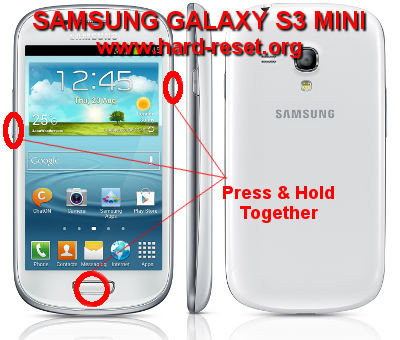
#Option 2, How to Hard Reset SAMSUNG GALAXY S3 MINI I8190 with Hardware key button:
  1. Make sure the battery of  SAMSUNG GALAXY S3 MINI I8190 charge properly
  2. Turn off  SAMSUNG GALAXY S3 MINI I8190
  3. Press and hold together : Power Button + Volume Up + Home Button 
  4. If the button at number 3 not work, you can try with press and hold together Power Button + Volume Up Button
  5. If we see the menu at LCD screen, choose Wipe Data/Factory Reset with Volume Button to select and use Power Button to ok or enter.
  6. The SAMSUNG GALAXY S3 MINI I8190 will doing the process of restoring to factory default.

#Option 3, How to Hard Reset  SAMSUNG GALAXY S3 MINI I8190 with Secret Key Code Security:
  1. Turn on SAMSUNG GALAXY S3 MINI I8190
  2. Make sure the battery of SAMSUNG GALAXY S3 MINI I8190 not empty
  3. dial or press number to call: *2767*3855#
  4. That number code will force format SAMSUNG GALAXY S3 MINI I8190

How to Restore and Reinstall Clean Android Operating system / firmware at SAMSUNG GALAXY S3 MINI I8190 ?
The clean and factory default Android operating system of SAMSUNG GALAXY S3 MINI I8190 already saved in ROM.  So if the SAMSUNG GALAXY S3 MINI I8190 got problem and we need to do reinstall or restore the default Android operating system or firmware, then we can do it easily with just do hard reset or master format, the operating system inside ROM will be automatically reinstall to SAMSUNG GALAXY S3 MINI I8190. Please remember, doing this step will make all important data and applications will be wipe, so you need to do backup as you can.

How to Unlock or Fix or Bypass or Solutions for SAMSUNG GALAXY S3 MINI I8190 forgot password code or security lock screen pattern or pin (lost password)?
When we need to give more protection for secure our SAMSUNG GALAXY S3 MINI I8190, we can choose several way, but we recommended to protect you Android SAMSUNG GALAXY S3 MINI I8190 with screen lock pattern or password pin protection. We think screen lock pattern is faster than password and able to use at any situations. If we forget about the answer of screen lock pattern or password pin protection, we can restore or by pass it by pressing Forget Password / Pattern button answering Google account username and password which already saved before. That button is sometime hiding, to make it appear, please try answer wrong password answer continuously then the Forget Password / Pattern button will be appear. If we can not answer the Google account username and password at SAMSUNG GALAXY S3 MINI I8190, than we need to do hard reset or master format step above.

How to Improve Performance SAMSUNG GALAXY S3 MINI I8190 to make run more faster?
Some user ask about how good SAMSUNG GALAXY S3 MINI I8190 to run many applications or multitasking application, the answer is SAMSUNG GALAXY S3 MINI I8190 good to run multitasking, since it have dual core processor and 1GB RAM are enough to do that job. But in some situations, the SAMSUNG GALAXY S3 MINI I8190 still become run slowly. Yes this problem can be happen at any situations, although SAMSUNG GALAXY S3 MINI I8190 spec is good, but we not recommended user to install as many applications as you can, because some applications who run in the background can take a lot of resource and sometime it will make SAMSUNG GALAXY S3 MINI I8190 become slower. To make SAMSUNG GALAXY S3 MINI I8190 performance back to faster again, you can try to delete some applications and do soft reset. If you can not deal with the speed, than you may consider performing hard reset or master format.

Is That Any Secret Code for Doing Format SAMSUNG GALAXY S3 MINI I8190 ?
The secret code for doing hard reset SAMSUNG GALAXY S3 MINI I8190 is *2767*3855#. But please remember to always becareful typing that code, because the SAMSUNG GALAXY S3 MINI I8190 will doing hard reset and remove all data and installed applications.
How to make Longer Life for SAMSUNG GALAXY S3 MINI I8190 Battery ?
Long lasting battery usage is important when using SAMSUNG GALAXY S3 MINI I8190. Since it use only 1500 mAh battery capacity will make our experience become stop when the battery start to drain. There are some tips for make SAMSUNG GALAXY S3 MINI I8190 battery life longer or not to fast to drain. Please do not choose auto brightness if you can, because the auto brightness in some situation will make it force to maximum brightness. Of course maybe you need that bright, but it will make our SAMSUNG GALAXY S3 MINI I8190 battery drain faster. Also choose the best place to use 3G or 2G data connection. Turn off all not use connection such as GPS or Wifi or Bluetooth or NFC (for I8190N).  Make the screen auto sleep is not more than 30 seconds. Also reducing the background process applications will give impact for make SAMSUNG GALAXY S3 MINI I8190 battery more longer to life before need to recharge. That steps are important to improve SAMSUNG GALAXY S3 MINI I8190 battery live performance.
The information from this page describe about samsung i8190 hard reset,S3 mini hard reset,how to format s3 mini,how to hard reset samsung galaxy s3 mini,how to format samsung galaxy s3 mini,samsung gt i8190 hard reset,samsung s3 mini hard reset,s3 mini format,samsung galaxy s3 mini hard reset,how to format samsung s3 mini. If you need another resource for hard reset, use search function at this homepage or find from our related posts.

SAMSUNG GALAXY S4 MINI GT-I9190 / GT-I9192 / GT-I9195 PATTERN UNLOCK

SAMSUNG GALAXY S4 MINI GT-I9190 / GT-I9192 / GT-I9195 ALL UNLOCK TRICKS AND TIPS

Tips and tricks for SAMSUNG GALAXY S4 MINI GT-I9190 / GT-I9192 / GT-I9195 problem solving. What is the different between GT-I9190 vs GT-I9192? The different of each SAMSUNG GALAXY S4 MINI, one which use single simcard (GT-I9190), and the other one is using dual simcard (GT-I9192). This is the mini spec of Samsung Galaxy S4, because it use 4.3 inches LCD screen with Super AMOLED and powered with dual core processor at 1.7 Ghz clock speed.

Main Advantage of  SAMSUNG GALAXY S4 MINI GT-I9190 / GT-I9192 / GT-I9195 Specifications:
LCD 4.3 inch Super AMOLED
Processor Dual-core 1.7 GHz Krait
GPU Adreno 305
Main 8 MP, 3264 x 2448 pixels, autofocus, LED flash
Front Camera  1.9 MP
Operating system Android OS, v4.2.2 (Jelly Bean)
Internal Memory 8 GB
RAM 1.5GB
External microSD slot up to 64GB
Battery Li-Ion 1900 mAh

How to Fix or Problem Solving for Recovery SAMSUNG GALAXY S4 MINI GT-I9190 / GT-I9192 / GT-I9195 hang or not responding or malfunctions or stuck or freezing or bricked ?
With dual-core 1.7Ghz processor, this smartphone can run for almost all applications at Google Play Store. SAMSUNG GALAXY S4 MINI GT-I9190 & GT-I9192 also have GPU Adreno 305 for playing Game HD with good performance. But not all applications are good and compatible with SAMSUNG GALAXY S4 MINI GT-I9190 & GT-I9192. If by any reason we’ve downloaded that incompatible applications than maybe some problem will be happen such as hang or stuck or bricks or frozen or LCD touch screen not responding. You can try to fix this problem by doing soft reset or reboot or restart for delete some cache and temporary files. If the problem still happen, we need to do hard reset or master format.

How to Soft Reset or Reboot or Restart SAMSUNG GALAXY S4 MINI GT-I9190 / GT-I9192 / GT-I9195 ?
This step is easy, because SAMSUNG GALAXY S4 MINI GT-I9190 & GT-I9192 battery is removable, so for anyone who get problem or stuck at their phone, can do soft reset or restart easily by remove the battery and plug it again after several seconds. If the phone still ON and we need to soft reset or restart SAMSUNG GALAXY S4 MINI GT-I9190 & GT-I9192, press the POWER BUTTON KEY for several seconds, we will see the menu to restart or turn off. Choose restart/reboot than the SAMSUNG GALAXY S4 MINI GT-I9190 & GT-I9192 will do the soft reset or restart. This is safe to do because all data or installed applications will not removed.

#Option 1, How to Hard Reset SAMSUNG GALAXY S4 MINI GT-I9190 / GT-I9192 / GT-I9195 with software menu:
  1. Turn on  SAMSUNG GALAXY S4 MINI GT-I9190 & GT-I9192
  2. Make sure SAMSUNG GALAXY S4 MINI GT-I9190 & GT-I9192 battery already charge properly
  3. Go to menu: Setting > Backup & Reset > Factory Data Reset > Reset Device
  4. Choose Delete All
  5. SAMSUNG GALAXY S4 MINI GT-I9190 & GT-I9192 will do the process to Master Reset to Factory Default


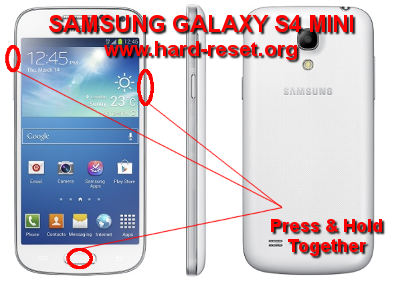
#Option 2, How to Hard Reset SAMSUNG GALAXY S4 MINI GT-I9190 / GT-I9192 / GT-I9195 with Hardware key button:
  1. Make sure the battery of  SAMSUNG GALAXY S4 MINI GT-I9190 & GT-I9192 charge properly
  2. Turn off  SAMSUNG GALAXY S4 MINI GT-I9190 & GT-I9192
  3. Press and hold together : Power Button + Volume Up + Home Button 
  4. If the button at number 3 not work, you can try with press and hold together Power Button + Volume Up Button
  5. If we see the menu at LCD screen, choose Wipe Data/Factory Reset with Volume Button to select and use Power Button to ok or enter.
  6. The SAMSUNG GALAXY S4 MINI GT-I9190 & GT-I9192 will doing the process of restoring to factory default.

#Option 3, How to Hard Reset  SAMSUNG GALAXY S4 MINI GT-I9190 / GT-I9192 / GT-I9195 with Secret Key Code Security:
  1. Turn on SAMSUNG GALAXY S4 MINI GT-I9190 & GT-I9192
  2. Make sure the battery of SAMSUNG GALAXY S4 MINI GT-I9190 & GT-I9192 not empty
  3. dial or press number to call: *2767*3855#
  4. That number code will force format SAMSUNG GALAXY S4 MINI GT-I9190 & GT-I9192

How to Restore and Reinstall Clean Android Operating system / firmware at SAMSUNG GALAXY S4 MINI GT-I9190 / GT-I9192 / GT-I9195 ?
For some reason, maybe we need to do reinstall or restore the clean and factory default setting Android operating system for SAMSUNG GALAXY S4 MINI GT-I9190 & GT-I9192. It is also easy to do because the file source of default Android operating system already saved safely inside ROM. So, we do not need to copy anything from outside SAMSUNG GALAXY S4 MINI GT-I9190 & GT-I9192. Just do master format or hard reset with the step above, then the clean default Android operating system will be reinstall or restore again from beginning. Please remember, doing reinstall or restore the operating system will make all data remove or wipe or clean from SAMSUNG GALAXY S4 MINI GT-I9190 & GT-I9192. Better for you to do backup first before doing reinstall or restore the operating system.

How to Unlock or Fix or Bypass or Solutions for SAMSUNG GALAXY S4 MINI GT-I9190 / GT-I9192 / GT-I9195 forgot password code or security lock screen pattern or pin (lost password)?
After giving security protection such as password pin or screen lock patter, some user might be forget about the answer of that security protection. Do not worry, because Android already prepare for bypass forgotten security password or pattern. Try to find Forget Password / Pattern button. If that button is hiding at our SAMSUNG GALAXY S4 MINI GT-I9190 & GT-I9192, we need to do several time wrong answer continuously, then for specific counting, it will stop and show Forget Password / Pattern. After pressing that button, the SAMSUNG GALAXY S4 MINI GT-I9190 & GT-I9192 will ask for Google account username and password. If we can not access Google account, then we have to do hard reset or master format.

What is PIN BACKUP at SAMSUNG GALAXY S4 MINI GT-I9190 / GT-I9192 / GT-I9195 ?
When we set our security protection at our SAMSUNG GALAXY S4 MINI, this phone will ask us to give and setup Backup unlock PIN, this PIN Backup will help use to unlock or bypass forgotten security protections at later time, so we do not need to do hard reset or master format. Use above steps to unlock forgot password or screen lock pattern security protection using Google account or Gmail username and password.

How to Improve Performance SAMSUNG GALAXY S4 MINI GT-I9190 / GT-I9192 / GT-I9195 to make run more faster?
The specifications of SAMSUNG GALAXY S4 MINI GT-I9190 & GT-I9192 is good and fast to run normal Android applications which can be download from Google Play Store. Some user report that their SAMSUNG GALAXY S4 MINI GT-I9190 & GT-I9192 become slowly after several months of use. This problem happen because there are some applications who run in the background and always do some activity such as update the database and also do other work. If some applications do that process together, of course that will make SAMSUNG GALAXY S4 MINI GT-I9190 & GT-I9192 resource become low and become more slowly. If we need to make it back to fast again, try to uninstall some not use applications. If the SAMSUNG GALAXY S4 MINI GT-I9190 & GT-I9192 need to make it back to faster again, you may consider doing hard reset or master format.

Is That Any Secret Code for Doing Format SAMSUNG GALAXY S4 MINI GT-I9190 / GT-I9192 / GT-I9195 ?
The secret code for doing hard reset SAMSUNG GALAXY S4 MINI GT-I9190 & GT-I9192 is *2767*3855#. But please remember to always becareful typing that code, because the SAMSUNG GALAXY S4 MINI GT-I9190 / GT-I9192 / GT-I9195 will doing hard reset and remove all data and installed applications.
How to make Longer Life for SAMSUNG GALAXY S4 MINI GT-I9190 / GT-I9192 / GT-I9195 Battery ?
Of course we need to make our SAMSUNG GALAXY S4 MINI GT-I9190 & GT-I9192 battery lasting longer and not drain to fast. After try to install only important applications, you can set the LCD brightness from Setting menu to specific number, not more that 50%.  Also choose the best place to use 3G or 2G data connection. Turn off all not use connection such as GPS or Wifi or Bluetooth.  Make the screen auto sleep is not more than 30 seconds. Also reducing the background process applications will give impact for make SAMSUNG GALAXY S4 MINI GT-I9190 & GT-I9192 battery more longer to life before need to recharge. That steps are important to improve SAMSUNG SAMSUNG GALAXY S4 MINI GT-I9190 & GT-I9192 battery live performance.
The information from this page describe about how to format s4 mini,hard reset s4 mini,s4 mini hard reset,samsung gt-i9190 hard reset,how to format samsung s4 mini,how to hard reset samsung gt-i9190,samsung i9190 hard reset,hard reset samsung i9190,i9190 hard reset,samsung s4 mini hard reset. If you need another resource for hard reset, use search function at this homepage or find from our related posts.

Best Product On Amazon Must Buy

Best Electronics Soldering Iron Kit - https://amzn.to/3gIulii

Best Desoldering Pump Soldering Iron - https://amzn.to/3egN4Qp

Best Screw Driver Set For Repairing - https://amzn.to/2OsA0ND

Best Cord less Screw Driver Set - https://amzn.to/3eqvtWw

Best & Cheap Digital Multimeter - https://amzn.to/467dOOb

Best Fold Scope Microscope Basic Kit - https://amzn.to/393WI6o

Best & Smallest 60x Microscope - https://amzn.to/477r5HQ

Microware-20x-to-1000x-8 Led-usb -   https://amzn.to/2W8DGs0

Best Magnifying-Soldering-Stand - https://amzn.to/2ZVcZrM

Supper LED TV Backlight tester - https://amzn.to/3gLyXEo

Mini Hand Drill and 20pcs Drill Bits - https://amzn.to/3fiEWAc

Popular Posts